
We deleted important files, can they be recovered?
Usually yes, if you act today. Check the recycle bin first, then version history and the deleted-items area in OneDrive, SharePoint or Google Drive, then previous versions on a Windows file server, then your backup, and only then specialist recovery for a physically failed drive. Every one of those has a retention window measured in days or weeks, so stop using the drive and start looking now.
Answered by Anthony Omini, Cross River Tech, Dallas
Key takeaways
- Work the recovery paths in order: recycle bin, cloud version history and deleted items, server shadow copies, your backup, then specialist recovery.
- Retention windows are real. Microsoft 365 keeps most deleted items for 93 days by default and Google Drive empties trash after 30, and both clocks started when the file went missing.
- If the file lived only on a local disk and the recycle bin is empty, stop using that computer immediately. Every minute it runs, the chance of recovery drops.
- A file that was overwritten with a new version is a different problem from a file that was deleted, and version history is what saves it.
- The only reliable answer is a backup you have actually restored from before. Everything on this page is a rescue, not a plan.
We deleted important files, can they be recovered?
Most of the time, yes. Work down this list in order and stop as soon as you find the file. The order is deliberate: each step is faster, cheaper and less risky than the one after it.
- Stop working in that location. Do not save new files into the same folder, do not empty anything, and if the file was on a local disk, stop using that computer entirely. New data written to a disk is what makes deleted data unrecoverable.
- Write down exactly what is missing. The file name, the folder path, roughly when it was last opened, who was working on it and whether it was deleted or overwritten. Those five facts decide which path works.
- Check the recycle bin on the computer where the file lived, and on the server if it was a shared drive. Restore rather than drag out, so it goes back where it came from.
- Check the cloud recycle bin. If the file was in OneDrive, SharePoint or Teams, look in the site or OneDrive recycle bin, then the second-stage recycle bin behind it. In Google Drive, look in Trash and in shared drive trash.
- Check version history if the file still exists but the contents are wrong. This is the fix for overwritten files, and it is a completely different button from the one that restores deletions.
- Check previous versions on the file server. Right-click the folder, choose Restore previous versions, and see whether a shadow copy exists from before the deletion.
- Go to the backup. Whatever backup system you have, find the most recent copy that predates the deletion and restore to a scratch folder first, never over the top of live data.
- Ask an administrator to look deeper. Microsoft 365 and Google Workspace both give administrators recovery options that end users cannot see, including restoring a whole library or a departed employee's files.
- Only then consider specialist recovery, and only for a physically failed or wiped drive. It is slow and expensive, and it is a last resort.
If you would rather not work through that alone while people are waiting, call (214) 612-7080 and tell me where the file lived. That one answer usually shortens the list to two steps.
Why does acting fast change what you can get back?
Because every recovery path has a clock on it, and several of those clocks started the moment the file disappeared. Waiting a week to mention it can turn a five-minute restore into a permanent loss.
There are two separate reasons speed matters. The first is retention. Cloud services hold deleted items for a fixed period and then purge them for good. Backup systems keep a set number of days, weeks or monthly copies, and older ones roll off to make room. A file that vanished a month ago may already be past the point where anybody can produce it, even though nothing failed.
The second reason is overwriting. When a file is deleted from a local disk, the data is not scrubbed. The space it used is marked as available, and it survives until something else is written on top of it. A computer that is still running writes constantly: temporary files, browser cache, log entries, updates. So the honest guidance for a local deletion is uncomfortable but simple. Stop using that computer. Do not install recovery software on it, because installing software writes to the very disk you are trying to read.
There is a third clock in one specific case. When an employee leaves and their account is deleted, their mailbox and personal cloud storage are held for a limited period and then removed. If you deleted the account and now need something from it, that is urgent rather than routine. It is one of the reasons the order of operations in offboarding an employee who left with the laptop matters so much.
Where do you look first on a Windows computer?
Start with the recycle bin, then previous versions, then the file's own application history. Between them they cover the ordinary cases without anybody needing administrator rights.
- The recycle bin. Open it, sort by the date deleted, and use the search box in the corner if the list is long. Right-click and choose Restore so the file goes back to its original folder rather than to the desktop. Note that files deleted from a network drive normally do not land in the local recycle bin at all.
- Shift-deleted files. If someone held Shift while deleting, or emptied the bin, the file skipped the bin entirely. Move to the next options and stop writing to that disk.
- Previous versions. Right-click the folder the file was in, choose Properties, then the Previous Versions tab. If File History or a restore point exists, you will see snapshots you can open and copy out of. This is empty on a lot of business machines because nobody enabled it, which is worth fixing.
- Application recovery. Word, Excel and PowerPoint keep autorecover copies and an unsaved-documents area under File, then Info, then Manage Document. For a file that was never saved rather than deleted, this is the one that works.
- The temp folder. Office and many other programs leave working copies behind with odd names. It is a long shot, but it costs nothing to look.
- Search the whole machine. Sometimes the file is not deleted at all. Somebody saved it into a Downloads folder, dragged it into the wrong folder, or it is sitting in a sync folder that has not finished uploading.
That last one is more common than the rest combined. Before declaring a file lost, search the computer for part of the name and check the Recent Documents list in the application that made it.
How do you recover files from Microsoft 365?
Microsoft 365 gives you three separate recovery mechanisms, and people routinely try the wrong one. Deletions, overwrites and mass changes each have their own tool.
For a deleted file, open the recycle bin in the OneDrive or SharePoint site where it lived. Items normally stay there for 93 days by default. If it is not in the first recycle bin, a site collection administrator can look in the second-stage recycle bin, which holds items that were deleted from the first one for the remainder of that same window.
For an overwritten or damaged file, use version history instead. Right-click the file in SharePoint, OneDrive or Teams, choose Version history, and you can preview and restore an earlier version. Libraries keep a substantial number of versions by default, which means the version from before somebody pasted over the whole spreadsheet is almost certainly still there.
For a mass deletion or a ransomware-style event, Files Restore rolls an entire OneDrive or SharePoint library back to any point within the last 30 days. It is the right tool when hundreds of files changed at once and picking through them individually is hopeless.
Two administrator-only cases are worth knowing. When a user account is deleted, their OneDrive is retained for a limited period, 30 days by default, before it is removed, and an administrator can grant someone access to it during that window. And a deleted Microsoft 365 group or Teams team, along with its files, can normally be restored within 30 days.
The important caveat is that none of this is a backup. Microsoft keeps your tenant running and protects itself against its own failures. It does not keep an independent copy of your data past those retention windows, and a deletion that is discovered four months later is simply gone. That gap is why an independent backup of Microsoft 365 is part of managed backup and disaster recovery, and why the tenant settings behind these windows are worth reviewing alongside Microsoft 365 security for a small business.
How do you recover files from Google Drive?
Google Workspace works the same way in principle with different names and shorter windows, so check it in the same order: trash, then version history, then an administrator.
Trash holds deleted files for 30 days and then removes them automatically. Files in a shared drive go to that shared drive's trash rather than your personal one, which is where people usually fail to look. Restoring from trash puts the file back in its original folder.
Version history covers overwrites. In Docs, Sheets and Slides, use File, then Version history, then See version history, and you can name, preview and restore any earlier revision. For uploaded files such as PDFs and images, right-click and choose Manage versions. Google keeps revisions for a limited time and a limited count unless you mark a version to keep forever, so an old edit will not necessarily still be there.
An administrator can go further. From the Admin console, an administrator can restore files a user deleted from their trash for a limited period after the trash was emptied, commonly around 25 days, and can restore the Drive contents of a recently deleted user account. Both are time-limited, and both need somebody with admin rights, which is a good reason to know today who holds those credentials.
The same caveat applies as with Microsoft. Google keeps the service running; it is not a backup product. If a departed employee's account was deleted two months ago and nobody exported their Drive, that data is not coming back through support. Deciding who owns which files, and exporting a leaver's data before the account is removed, is part of a proper offboarding routine rather than an emergency.
What are shadow copies, and does your server have them?
Shadow copies are point-in-time snapshots that a Windows server takes of a shared folder, and they are the fastest recovery there is when they are turned on. Most small-business servers I look at either have them enabled and forgotten, or never had them at all.
When they are enabled, anyone can use them. Right-click the folder on the mapped drive, choose Properties, then Previous Versions, and you get a list of snapshots by date. Open one, find the file, and copy it out. No administrator, no restore job, no waiting. For an accidental deletion on a shared drive at eleven in the morning, this is usually the whole fix.
The limits matter. Snapshots are taken on a schedule, commonly twice a day, so you get back the version from the last snapshot, not the version from ten minutes ago. They consume a slice of the same disk, and when that space fills the oldest snapshots are dropped, which means the history is often shorter than people assume. And because they live on the same volume as the data, they do not survive a failed disk, a destroyed server or ransomware with administrator rights. Shadow copies are a convenience feature, not a backup.
If you have a file server and nobody can tell you whether shadow copies are on, that is a five-minute thing to check and a worthwhile one. Alongside it, check whether the server's data actually lives on a separate volume from its operating system, because that single design decision changes what a rebuild looks like. That is covered in what to do when the office server will not boot.
Where should you look, and how long do you have?
Match where the file lived to the row below. The windows are the common defaults; yours may have been changed, which is itself worth knowing before you need it.
| Where the file lived | Where to look, in order | Typical window |
|---|---|---|
| Local disk on a PC or laptop | Recycle bin, then Previous Versions, then backup, then specialist recovery | Until the space is overwritten, which can be minutes |
| OneDrive for Business | Recycle bin, second-stage recycle bin, version history, Files Restore | 93 days deleted, 30 days for a full rollback |
| SharePoint or Teams files | Site recycle bin, second-stage bin, version history, Files Restore | 93 days deleted, 30 days for a full rollback |
| A departed employee's OneDrive | Admin retention of the deleted account, then backup | 30 days by default after the account is deleted |
| Google Drive, personal | Trash, version history, then admin restore | 30 days in trash, around 25 more via admin |
| Google shared drive | That shared drive's trash, then admin restore | 30 days in trash |
| Windows file server share | Server recycle bin, Previous Versions, then backup | Whatever the snapshot schedule and disk space allow |
| A NAS or external drive | Its own trash or snapshots, then backup | Varies by device, often none at all |
| Email attachment only | Deleted items, recoverable items, then the mailbox backup | 30 days recoverable items by default |
The row that catches people is the last one on the physical devices. A NAS in the closet with no snapshots and no offsite copy has exactly one version of your data, and a deletion on it is immediate and final.
When is a file genuinely unrecoverable, and what does specialist recovery cost?
Some files really are gone, and I would rather tell you that on the phone than bill you to discover it. Being honest about which cases those are also tells you what to protect against.
- Overwritten local data. Once new data has been written on top of the old blocks, no tool recovers it. This is why continuing to use the computer is so damaging.
- Anything past its retention window. A cloud item purged after 93 days, a Google file gone from trash after the admin window, a backup that rolled off. Support cannot conjure it back, and asking repeatedly will not change the answer.
- Data on an encrypted drive with no key, including a BitLocker volume when nobody has the recovery key. The data is intact and permanently unreadable, which is somehow worse.
- Securely wiped or reformatted-and-reused drives, and most solid-state drives after deletion, because SSDs actively clear unused blocks in the background. Recovery from an SSD is markedly less likely than from an old spinning disk.
- Physically destroyed media beyond what a cleanroom can read, which does happen with fire, flood and severe head crashes.
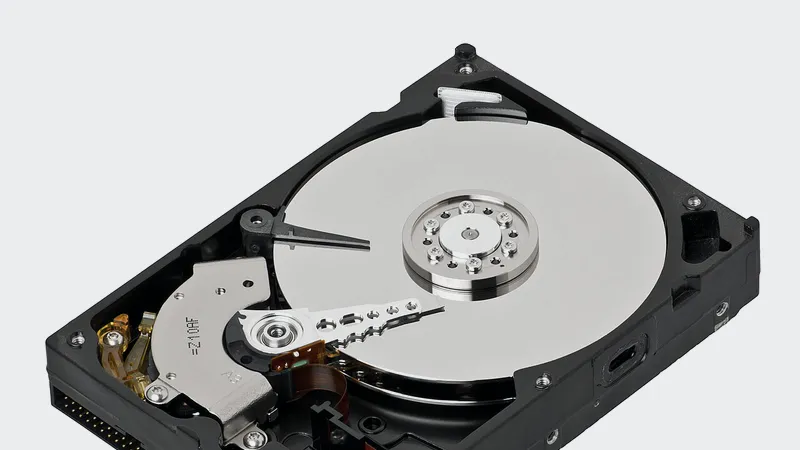
Specialist recovery is the remaining option when a drive has failed physically but the data still exists on the platters. It is a laboratory service: the drive is opened in a clean environment, imaged, and reconstructed. It works surprisingly often, it takes days to weeks, and it costs many times what a year of proper backup would have cost. It is worth it for something irreplaceable and almost never worth it for anything else. I will refer you to a recovery lab when that is genuinely the right call, and I will tell you plainly when it is not.
How do you make the next deletion a non-event?
Design it so that losing a file is boring. That takes four things, and none of them are expensive at the size of a typical Dallas office.
- Get files off local disks. Anything that only exists in somebody's Documents folder is one spilled coffee from gone. Work in OneDrive, SharePoint or a shared drive that is backed up, and make that the default rather than the exception.
- Back up your cloud data independently. Microsoft 365 and Google Workspace protect their service, not your history. An independent backup of mailboxes, OneDrive, SharePoint and Teams gives you a copy that outlives the retention windows and survives a deleted account.
- Keep one copy an attacker or a mistake cannot reach. Offline, offsite or immutable. A backup on a drive plugged into the server is a backup of convenience only.
- Test a restore and write down the date. This is the step everybody skips and the only one that proves the other three work. Pick a random folder, restore it somewhere harmless, open a file, note that it worked.
Alongside those, two small habits prevent a good share of deletions in the first place: give people access only to the folders they actually need, so a mistake has a smaller blast radius, and stop using shared logins so you can tell who deleted what and when. Both are ordinary parts of how I set up managed IT for a small office, and both cost nothing but the decision.
If you are not sure whether your current backup would survive any of this, that is a short conversation and a useful one. Reach me through the contact page or on (214) 612-7080. If files are missing right now, say so when you call and we can start with the fastest path for wherever they lived. Emergency work runs through my hourly IT support at $100 per hour remote and $150 onsite during business hours, $150 and $225 after hours, with a one-hour minimum, and remote help is available around the clock.
Questions people ask
How do I get back a deleted work file if the recycle bin is empty?
It depends where the file lived. If it was in OneDrive, SharePoint or Teams, check the site recycle bin and then the second-stage recycle bin, which an administrator can reach. If it was in Google Drive, check trash and then ask an administrator. If it was only on a local disk, stop using that computer immediately and call for help before anything overwrites the space.
Does Microsoft 365 back up our files?
Not in the way most people mean. Microsoft keeps the service running and gives you recycle bins, version history and a 30-day library rollback, but it does not keep an independent copy of your data beyond those windows. A deletion discovered six months later is gone. If your business depends on that data, you need a separate backup of Microsoft 365 alongside it.
Someone overwrote a spreadsheet with the wrong version. Can that be undone?
Yes, and it is easier than a deletion. Use version history rather than any recycle bin. In SharePoint, OneDrive or Teams, right-click the file and choose Version history, then preview and restore the version from before the change. In Google Sheets, use File and then Version history. On a file server, right-click the folder and look under Previous Versions.
Can you recover files from a computer that will not turn on?
Usually. If the fault is the power supply, the screen, the board or the operating system, the drive itself is normally fine and the data can be read by connecting it to another machine. If the drive itself has failed physically, that becomes a laboratory job rather than an IT one. Either way, do not keep switching the machine on and off while you decide.
Should we run a data recovery program we found online?
Not on the affected computer. Installing anything writes to the same disk you are trying to recover from and can destroy the file you want. Some of those tools are also bundled with unwanted software. If the data matters, power the machine down, and let it be imaged first so the recovery attempt happens on a copy rather than the original.
How much does file recovery cost for a small business in Dallas?
Most cases are ordinary hourly work: $100 per hour remote or $150 onsite in business hours, with a one-hour minimum, and a restore from a working backup often takes less than that. Laboratory recovery from a physically failed drive is a different category entirely and costs many times what a year of proper backup would have. I will tell you which one you are looking at before any work starts.