Key takeaways
- A dental network that keeps going down almost always has one physical or configuration cause that nobody has traced, not bad luck.
- The most common culprits I find are a consumer-grade router, an aging switch, a bad cable run to one operatory, and imaging devices sharing Wi-Fi with everything else.
- Rebooting fixes the symptom for a day; finding the cause takes a methodical pass through the cabling, the switch, the firewall, the server and the internet connection.
- If your current IT company has been called for the same outage three times and it is still happening, it is time to switch, and switching can be done without downtime.
- You can have me look at it hourly with no contract, and move to monthly support only if the fix and the follow-up make sense.
Who should a Dallas dental office call when the network keeps going down?
Call me. I am Anthony Omini, the owner of Cross River Tech, and troubleshooting dental office networks that drop, freeze or crawl is a large part of what I do around Dallas. You do not need a contract to get me to look at it. I start remotely, because most of the evidence is visible from the firewall, the switch and the server logs, and I come onsite when the problem is physical, which in dental offices it often is.
The reason I lead with that is simple. When a dental network goes down, the practice stops. The schedule is on the server, the X-rays are on the server, the sensors will not capture, the card terminal will not process, and a waiting room full of patients is watching your front desk apologize. A practice losing a morning of production is losing real money, and the office manager has usually already rebooted everything twice before anyone calls.
What I do differently from the reboot cycle is find the cause and remove it. This article explains what those causes usually are, how I go about diagnosing them, and how to tell when the problem is not your equipment but the company that is supposed to be looking after it. If you want the broader picture of how I support dental offices day to day, that is on the dental practice IT support page.
What actually causes a dental office network to keep dropping?
After enough of these calls, the same handful of causes keep turning up. In rough order of how often I find them:
- A consumer router doing a business job. A router bought at a big-box store can handle a house. It cannot handle ten workstations, a server, a panoramic unit, three sensors, VoIP phones and a guest Wi-Fi network at once. It overheats, its address table fills up, and it silently drops connections until it is rebooted.
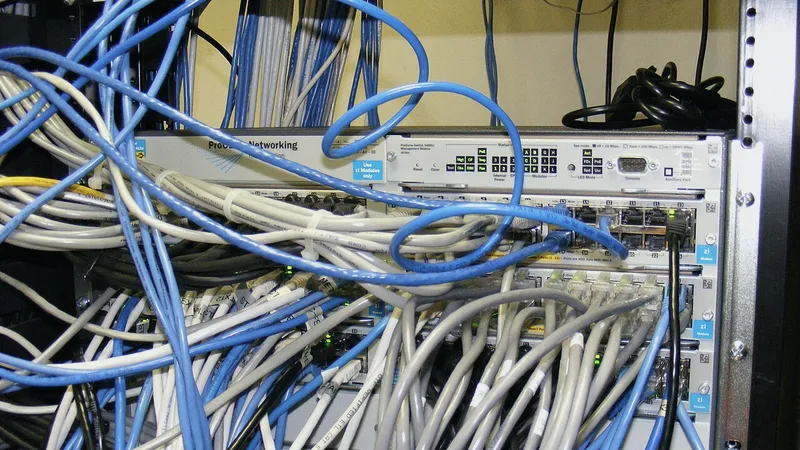
- An old or unmanaged switch. Switches fail slowly. A port goes flaky, a device starts flapping on and off, and the whole office feels it. A cheap unmanaged switch also gives you no way to see which port is causing the storm.
- One bad cable run. A cable that was kinked during construction, run beside a fluorescent ballast, terminated badly or chewed at the ceiling will work most of the time and fail under load. It often shows up as one operatory that always has trouble.
- Imaging devices on Wi-Fi. Sensors and pans that connect wirelessly share the air with patient phones in the waiting room. When the waiting room is full, the images fail.
- Two devices handing out addresses. Someone plugged in a second router as a Wi-Fi extender, and now two devices are both trying to be in charge of the network. Half the office lands on the wrong one.
- A server that is out of breath. A server that is full, short on memory or running a backup during business hours makes the practice software freeze, which looks exactly like a network outage to the person at the chair.
- The internet connection itself. If your practice software is cloud-based, a flaky connection is the whole problem. If it is onsite, the internet dropping should not stop charting, and if it does, something is misconfigured.
- Power. A rack with no battery backup, or a battery that died years ago and nobody noticed, reboots the whole network on every flicker.
Notice that none of these fix themselves, and none of them are fixed by rebooting. They come back.
Why does it always seem to happen when the office is busiest?
Because it is load-related, and busy is when the load peaks. Mid-morning every operatory is capturing images, the front desk is verifying insurance on carrier websites, the phones are ringing, and a patient in the waiting room is streaming a video on your guest Wi-Fi. A network with a weak point will hold together at 7 AM and fold at 10:30.
Three specific patterns are worth knowing about:
- Backup jobs scheduled at the wrong time. A backup that kicks off at 9 AM instead of 9 PM will saturate the server disk and the network for an hour. The previous IT company set it years ago and nobody looked again.
- Imaging traffic. A CBCT scan is a large file. Sent across a network that is already busy, or across Wi-Fi, it can stall other devices for the duration of the transfer.
- Heat. Equipment closets in Dallas suites get hot by early afternoon, particularly in summer. Routers and switches throttle or drop when they overheat, then recover overnight, which is why the problem seems random.
When an office manager tells me the network goes down most days between 10 and 2, that is not random. It is a clue, and it usually points straight at one of the causes above.
How I diagnose a network that keeps going down
I follow the same order every time, because guessing costs you more billable hours than a method does. Here is what I actually do:
- Listen to the pattern. Which rooms, what time of day, what the person was doing when it dropped, whether the phones drop too. Five minutes of questions narrows it a lot.
- Check the edge. I look at the internet connection and the firewall first: uptime, error counts, whether the device is a business model or a home one, how hot it is running, and whether anything is fighting it for control of the network.
- Look at the switch. On a managed switch I can see errors per port, which port keeps dropping its link, and which device is flooding traffic. On an unmanaged switch I cannot, and replacing it with a managed one is often the first fix I recommend, because it turns a guessing game into a readout.
- Test the cabling. I put a cable tester on the runs to the rooms that complain most. A run that fails at full speed but passes at low speed is the classic bad-termination result.
- Check the server. Disk space, memory, event logs, backup schedule, antivirus scan schedule and whether Windows is trying to update at 11 AM.
- Look at the imaging devices. Fixed addresses, wired connections, whether the vendor's software is timing out or the network is.
- Check power. Battery backup present, battery healthy, everything actually plugged into it.
Most of that takes a couple of hours, remote first and then onsite. At the end I can tell you the cause in plain words, what it costs to fix, and what I would replace even if it is not the cause today, because it will be the cause next year.
Is it the internet or the network? How to tell
Office managers usually describe both the same way: "the internet is down". They are different problems with different fixes, and you can often tell them apart before you call:
| What you see | Likely internet problem | Likely internal network problem |
|---|---|---|
| Dentrix or Eaglesoft on an onsite server freezes | Unlikely | Likely: switch, cable, server |
| Carrier websites will not load but charting works | Likely | Unlikely |
| Cloud practice software stops for everyone | Likely | Possible if the firewall is failing |
| Only one operatory has trouble | Unlikely | Likely: that room's cable or jack |
| Phones drop calls while computers are fine | Possible: bandwidth or jitter | Possible: switch or phone settings |
| Everything drops and comes back after a reboot | Unlikely | Likely: router or switch overheating or overloaded |
| Sensors fail to capture when the waiting room is full | Unlikely | Likely: imaging on Wi-Fi |
If the problem really is the internet, the fix is usually a second connection from a different carrier with automatic failover at the firewall, plus a conversation with the primary carrier armed with the outage log I keep. If it is internal, the fix is one of the items in the next section.
Quick fixes versus fixes that hold
There is a place for a quick fix. If a patient is in the chair and the sensor will not capture, I will get you working first and investigate second. But a quick fix that becomes the permanent plan is how a practice ends up rebooting the router every morning for two years.
| Symptom | Quick fix | Fix that holds |
|---|---|---|
| Router drops connections daily | Reboot it | Replace with a business firewall on a battery backup |
| One operatory keeps dropping | Move the computer to another jack | Re-terminate or re-run that cable, then test it |
| Sensors fail when busy | Ask patients to stay off Wi-Fi | Wire the imaging devices, put guests on a separate network |
| Software freezes mid-morning | Restart the server at lunch | Move backups and scans to after hours, add memory or disk |
| Everyone loses connection at once | Power-cycle the switch | Replace the unmanaged switch with a managed one and find the flooding device |
| Internet flaps | Call the carrier | Add a second carrier with automatic failover |
The right-hand column is what I quote. Most of it is a one-time cost, and the equipment I install is business hardware from Dell, Lenovo and the network vendors I work with, not the cheapest thing on the shelf. The backup and security page covers the backup and firewall side in more detail, because a network fix is also a good moment to make sure the practice is protected.
When is it time to switch IT companies?
A dental practice usually tolerates a bad IT company far longer than it should, because switching sounds risky and the current one at least knows where the server is. Here is how I would judge it honestly:
- You have called about the same outage three or more times and it still happens.
- The answer is always "reboot it" and nobody has ever come out with a cable tester or looked at the switch.
- You do not know whether your backups work, because nobody has ever shown you a restored file.
- Calls go to a ticket queue and the person who finally calls back has never seen your office.
- You are paying a monthly fee and the router is still a home model from an electronics store.
- Your imaging vendor and your IT company blame each other and neither will get on a call with the other.
If two or more of those are true, switching is the right move, and it does not have to mean a day of downtime. I take over networks from other companies regularly. I document what exists, get administrative access handed over properly, put my own monitoring and backup in place, and only then make changes. The steps are laid out in how to switch IT companies without downtime, and the warning signs are covered in more depth in signs you need to change your managed service provider.
What you get on the other side is a small company whose owner knows your office. When you call, you get me, not a queue, and my team works from the same notes I do. I know which operatory has the temperamental jack because I fixed it.
What it costs to get the network looked at
You can bring me in hourly, with no contract, to diagnose and fix the problem. Business-hours rates are $100 per hour remote and $150 per hour onsite, with a one-hour minimum. Diagnosis on a typical single-location practice is usually a couple of hours, and I tell you before I start replacing anything what the hardware will cost.
If you would rather not have this happen again, the same work folds into a month-to-month managed IT plan, quoted per user or per device after a short conversation. That covers ongoing monitoring of the firewall, switch and server, patching, backups and unlimited remote support, with onsite visits when remote cannot fix it. It is month-to-month and you can cancel any time, which is the arrangement I would want if I were the one switching from a company that had let me down.
Either way, the first step is the same. Tell me what is happening and when, and I will tell you what I think it is and how I would confirm it. Reach me through the contact page or call (214) 612-7080.
Questions people ask
My dental office network goes down every day around the same time. What does that mean?
A daily pattern is a load or schedule clue, not bad luck. It usually points to a backup or scan running during business hours, a router or switch overheating by early afternoon, or imaging traffic peaking when every operatory is busy. I look at the schedule on the server and the error counts on the switch first, because one of those almost always explains it.
Can you fix it remotely or do you have to come to the office?
I start remotely, because the firewall, switch and server logs tell most of the story and remote time is cheaper for you. If the cause is physical, such as a bad cable run, a failing switch port or an overheating closet, I come onsite by appointment with a cable tester and replacement hardware. Most diagnoses take a mix of both.
Do I have to sign a contract to have you look at the network?
No. Break/fix work is hourly with no contract: $100 per hour remote and $150 per hour onsite during business hours, one-hour minimum. Many practices have me diagnose and fix the outage first and decide about monthly support afterwards. If you do move to managed IT, it is month-to-month and you can cancel any time.
How do I switch IT companies without losing a day of production?
I document what you have, get administrator passwords and vendor logins handed over from the outgoing company, and put my own monitoring and backup in place before changing anything. The practice keeps running throughout. Only after I understand the setup do I replace the router, switch or cabling that has been causing the outages, and that work is scheduled around your patient hours.
Why does the practice software freeze if the server is right here in the office?
A freeze in Dentrix, Eaglesoft or Open Dental on an onsite server is nearly always an internal problem: a switch dropping packets, a bad cable to one room, a server that is out of disk or memory, or a backup running mid-morning. It is not the internet. Those are all things I can find and fix, and they are the reason a reboot only helps for a day.
Should the X-ray sensors and pan be on Wi-Fi?
No. Imaging devices belong on a wired connection with a fixed address, on the same network as the server. Wireless sensors share the air with every phone in your waiting room, and captures fail when it fills up. If your office was set up with imaging on Wi-Fi, running a Cat6 drop to those units is one of the highest-value fixes I can do.
Sources and further reading
Market price ranges in this article are my own observation of quotes in the Dallas market, not a published survey. Where I state a rule or a standard, the source is linked above.