
Key takeaways
- I set up IT for new businesses across Dallas: internet, email, computers, Wi-Fi, backups, security and phones, plus cabling if you are building out a space.
- Order internet first, because it has the longest lead time; everything else can be prepared while you wait for the install date.
- Put your email on Microsoft 365 or Google Workspace at your own domain from day one; moving off a free account later costs more than starting right.
- Buy business-class computers with Windows Pro, and turn on multi-factor authentication, encryption, endpoint protection and a real backup before the first client file is saved.
- A small office can be fully set up in a few weeks once the internet date is known, and it can be done on hourly rates or as the start of a managed IT relationship.
Opening a business in Dallas and need IT set up: who can help?
I can. I am Anthony Omini, owner of Cross River Tech, a small, owner-led managed IT company in Dallas. Setting up technology for a brand-new business is something I do from start to finish: ordering and coordinating internet, creating email at your domain, buying and configuring computers, installing Wi-Fi and network equipment, setting up backups and a security baseline, getting a phone system working, and running cabling if you are building out or renovating a space. I plan it, my team and I set it up, and afterward you have one plan and one number to call: mine.
The advantage of doing it before you open is enormous. Every choice is cheaper and easier on an empty floor than in a working office. Cable goes into open walls instead of over ceiling tiles. Email starts at the right address instead of being migrated later. Computers are set up correctly instead of "fixed" one at a time. Security is on from the first file rather than bolted on after a scare.
This checklist is the order I use with new clients in Dallas, from the first lease signature to the first day open. Each section says what to decide, what it usually involves and where the common mistakes are. If you would rather hand the whole list to me, the new office IT setup service is exactly that.
Step one: order internet before anything else
Internet has the longest lead time of anything on this list, and it gates everything else. Depending on the building and the carrier, a business connection in Dallas can take anywhere from a week to a couple of months to install, especially in a new construction or a suite that has never had service. Order it the day you have a signed lease and an address.
What to decide:
- Which carriers serve the building. Not every provider reaches every address. I check availability at the exact suite and ask the property manager what is already in the riser.
- Fiber, cable or fixed wireless. Fiber gives equal upload and download speeds, which matters for cloud applications, video calls and backups. Cable is widely available and cheaper but has slow upload. Fixed wireless is a fallback where nothing else reaches.
- How much speed. For most small offices, a few hundred megabits with decent upload is plenty. Faster is rarely the problem; slow upload and unreliable equipment are.
- A backup connection. A cellular backup in the firewall keeps a dental front desk or a law firm working when the main line drops. Cheap insurance for any business that cannot work offline.
- Where the service enters. The carrier terminates in the building's telecom room or your IT closet; the cabling plan below needs to know which.
I coordinate the order, the carrier's site visit and the install appointment, and I make sure the modem lands where your equipment will be rather than in a random corner. The getting internet into a new office article goes through the carrier process in more detail.
Step two: set up email and your domain the right way
The single most common mistake I see in new Dallas businesses is running the company on a free personal email account, then trying to move off it a year later. Start at your own domain from the first email.
Register the domain in your name. Not your web designer's, not a friend's. It is the front door of the business and you should hold the key.
Choose Microsoft 365 or Google Workspace. Both give you email at your domain, shared calendars, cloud file storage and video meetings. Microsoft 365 is the default for law firms, insurance agencies and any office that lives in Word and Excel; Google Workspace suits businesses that prefer the browser and Google Docs. Either works, and I support both. The choice should follow the software you will use every day, not a preference for logos.
Set it up properly on day one. That means the correct licenses for each person, multi-factor authentication turned on for every account, the domain's email authentication records configured so your messages do not land in spam, a shared mailbox for info@ or hello@, and groups for the roles you will grow into. This is an hour of work now and a month of pain later.
Put files in the cloud from the start. A shared library in SharePoint or Google Drive with a sensible folder structure, so the first invoice is saved where the tenth employee will find it. Nothing lives on anybody's desktop.
All of this is the Microsoft 365 and Google Workspace setup I do routinely, and it is the foundation the rest of the checklist sits on, because every computer and phone signs in with these accounts.
Step three: computers, and what to buy
Buy business-class machines. For a Dallas office that means Dell Latitude or OptiPlex, or Lenovo ThinkPad or ThinkCentre, with Windows 11 Pro, 16 GB of memory and a solid-state drive of at least 512 GB. Skip the consumer laptops on sale at retail stores; they ship with Windows Home, which cannot be encrypted and managed the way a business needs, and with shorter warranties. I explain the whole reasoning in buying and supporting Dell and Lenovo business computers.
Decide laptops versus desktops by how people work. Anyone who will ever work from home, travel or take a laptop to a client gets a laptop and a dock at their desk. A fixed front desk or a shared workstation is better served by a small desktop and two monitors. Extend the manufacturer warranty to at least three years with onsite service, and buy one spare machine if you can.
Before anyone uses a computer, it is set up: firmware and Windows updated, joined to your Microsoft 365 or Google environment, drive encryption on, endpoint protection and my monitoring agent installed, the applications loaded, printers connected, and the person's account signed in with their files syncing to the cloud. That takes a couple of hours per machine and it is the difference between a computer that works and a box someone unpacked.
Printers and scanners deserve a line here too. Buy a business multifunction printer with a network connection and a proper scanning workflow to your cloud files, not a home inkjet. For a dental or medical practice, plan for the imaging and practice-management workstations separately, because their vendors have specific requirements.
Step four: Wi-Fi and the office network
The router your internet provider hands you is not a business network. It is designed to get a home online. For an office you need a small set of business-grade equipment that I install and manage:
- A firewall between the internet and your office, with the ability to add a cellular backup and, if you ever need it, a VPN for remote access to anything onsite.
- A switch with enough ports for every wired desk, printer and phone, with Power over Ethernet so phones and access points draw power through the network cable.
- Access points mounted on the ceiling, one per roughly two to three thousand square feet depending on walls and layout, rather than one router under a desk. Separate networks for staff, guests and any smart devices.
- A small rack or wall cabinet in the IT closet, so the equipment is mounted, labeled and cooled rather than piled on a shelf.
Wire every desk that does not move. Wi-Fi is for phones, laptops in meeting rooms and visitors; a front desk that runs on Wi-Fi is the office's most frequent support call. Every device gets a fixed place on the network, the equipment is documented with passwords in a password manager you own, and I can see and manage it remotely from then on. The office Wi-Fi access point installation article covers placement and the mistakes to avoid.
Step five: backups and the security baseline
Do this before the first client file, the first invoice and the first employee record exists. A new business has no legacy mess to clean up, which makes it the easiest security setup you will ever do.
- Multi-factor authentication on every account. Email, cloud files, banking, accounting software, the phone system. A password alone is not enough, and MFA is included in the licenses you already bought.
- Endpoint protection on every computer, reporting to a console my team and I watch, so an infected laptop is caught rather than discovered.
- Drive encryption on every laptop, so a stolen machine is a hardware loss rather than a data breach.
- Email security: filtering for phishing and spoofing, and a house rule that any payment or password change requested by email is confirmed by phone.
- Backups that are separate from the working copy. Microsoft and Google keep your data available; they do not promise to bring back what an employee deleted two months ago. A separate backup of mailboxes and files, plus any onsite server, tested by actually restoring something.
- No local admin rights for daily work, screens that lock after a few minutes, and a written list of who has access to what.
- A one-page plan for what happens if a laptop is stolen, an account is compromised or the office is unreachable. Two paragraphs, agreed in advance.
For a dental practice, medical office, law firm or insurance agency, this baseline is also what helps you meet HIPAA, state privacy and cyber-insurance requirements when the questionnaire arrives. It is the same work described on the cybersecurity, backup and disaster recovery page, and on a new office it is a day of work rather than a project.
Step six: business phones
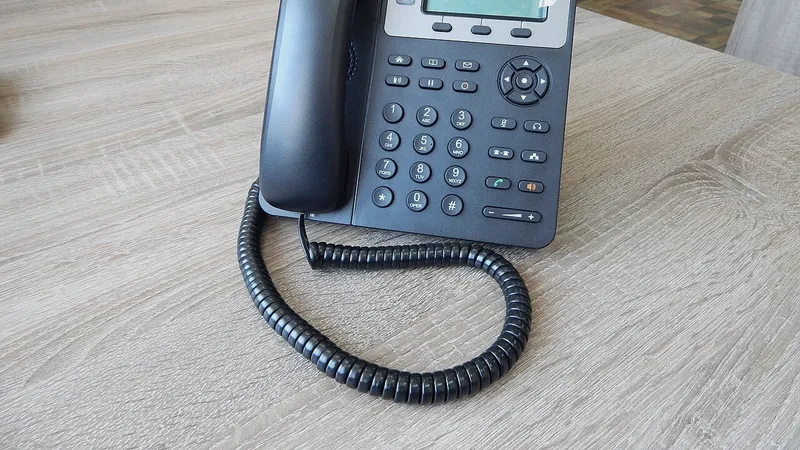
You do not need a phone closet anymore. A cloud phone system, often called VoIP (voice over internet protocol), runs over your internet connection and works on desk phones, computers and mobile apps. I work with Cleod 9 Voice for business phone systems, and I handle the whole setup: choosing between desk phones and softphones, building the call flow (main number, auto-attendant, ring groups, voicemail to email), and getting it running on the same network I just installed.
If you are taking over an existing number, that number is ported from the old carrier, which involves a signed authorization and a recent bill and typically takes a couple of weeks. If you are starting fresh, choose a local Dallas number and set it up on the new system directly. Either way, order phones early enough that the number is live before the first customer sees your sign.
The reason to have the same company handle phones and computers is simple: a VoIP system is only as good as the network under it. Phones need Power over Ethernet ports, the firewall needs to prioritize voice traffic, and the internet needs enough upload. When one company owns all three, there is no vendor blaming the other. I cover this in computers and phones from one IT company.
Step seven: cabling, if you are building out or renovating
If you are taking a raw space or renovating a suite, cabling comes before drywall closes, and it needs to be in the construction schedule. This is where a business either gets a clean, labeled network for the next fifteen years or an office of Wi-Fi workarounds.
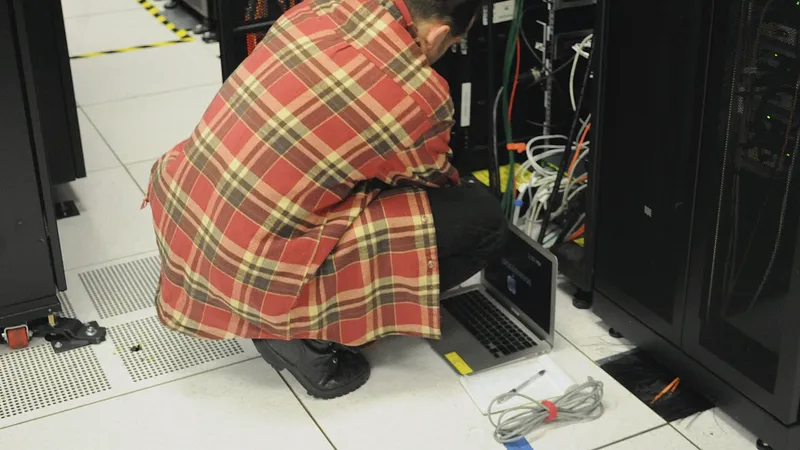
What it involves: a plan of every desk, printer, phone, access point, TV and camera location with a Cat6 drop for each (two per desk is the sensible standard), cable run from the IT room through the ceiling to each location, jacks and faceplates at the wall, everything terminated on a patch panel in the IT room, and every run tested and labeled. In the IT room itself: a rack or wall cabinet, patch panel, switch, firewall and a clean power arrangement.
Coordinate with the general contractor early. I need to know where walls, furniture and the ceiling grid go, and the contractor needs to know where the IT room is and that it has power, cooling and a clear path to the carrier's entry point. The data cabling and IT room setup service describes the work, and the Cat6 vs Cat6a vs fiber article helps you decide what to pull.
If you are moving into a finished suite that already has jacks, I test what is there before assuming it works. Older buildings around Downtown and Deep Ellum in particular often have wiring that looks fine and fails a test.
The timeline, and what it costs
Here is how the steps line up for a typical small office in Dallas, counted from lease signature. Every project is different, but the order rarely changes.
| When | What happens |
|---|---|
| Week 0 | Lease signed. Order internet. Register domain. Decide Microsoft 365 or Google Workspace. Walk the space and plan drops if building out. |
| Weeks 1 to 2 | Email and accounts created. Order computers, phones and network equipment. Cabling installed if walls are open. |
| Weeks 2 to 4 | Computers set up and secured. Phone system built and number ported. Printer and scanning configured. |
| Internet install day | Firewall, switch and access points go live. Phones and computers tested on the real connection. Backups start. |
| Week before opening | Walk-through with staff: sign-in, email, files, phones, how to reach me. Documentation handed over. |
Cost has two parts. Equipment and licenses you buy directly, and I will spec them so you are not overpaying or under-buying. Labor is either hourly, at $100 per hour remote and $150 per hour onsite during business hours with a one-hour minimum, or included as the first month of a managed IT relationship quoted per user or per device after a short conversation. For a business of five to fifteen people, the setup is usually a few days of work spread over a few weeks, most of it scheduled around your contractor and the carrier.
If you are opening in Dallas and want one company, with one point of contact, to handle this list, tell me your address, headcount and opening date. I will send back a plan with the order dates you need to hit.
Questions people ask
How far ahead should I start on IT before opening?
Order internet the day you have a signed lease, because carrier installs in Dallas can take from a week to a couple of months depending on the building. Everything else, from email to computers to phones, can be prepared in the two to four weeks before the install date. If you are building out a space, cabling has to be in the construction schedule before the walls close.
Can I just use Gmail and a Wi-Fi router from the store to begin with?
You can, and many businesses do, but it costs more later. A free email account cannot be managed, secured or migrated cleanly, and a consumer router cannot separate guests from staff, prioritize phone calls or be monitored. Setting up Microsoft 365 or Google Workspace at your own domain and a small business firewall on day one takes a few hours and avoids a painful migration in year two.
Do I need a server for a new small business?
Usually not. Email, files, calendars and most business applications now run in the cloud, which means less equipment to buy, cool and back up. The exceptions are practice-management or imaging systems that require an onsite server, common in dental and medical offices, and some legacy line-of-business software. I will tell you if your industry's software needs one and size it accordingly.
Can you handle the phones as well as the computers?
Yes. I work with Cleod 9 Voice for cloud business phone systems and set up the call flow, desk phones or softphones, voicemail to email and mobile apps, and I port your existing number or set up a new Dallas number. Because I also install the network the phones run on, there is no separate phone vendor and no finger-pointing when call quality drops.
What does IT setup for a new office cost?
You buy the equipment and licenses directly, with a spec from me so nothing is over- or under-bought. Labor is billed hourly at $100 remote and $150 onsite during business hours with a one-hour minimum, or included as the start of a managed IT relationship quoted per user or per device. A five-to-fifteen-person office typically needs a few days of work spread across the weeks before opening.
Sources and further reading
Market price ranges in this article are my own observation of quotes in the Dallas market, not a published survey. Where I state a rule or a standard, the source is linked above.