
Key takeaways
- Business Wi-Fi comes from ceiling-mounted access points, each on its own Cat6 cable back to the rack, powered by the switch, not from a bigger router in the closet.
- A typical Dallas office needs one access point for every 1,500 to 2,500 square feet of open space, and more where there are many walls or many people in one room.
- Placement beats power: an access point in the middle of the ceiling covers more than a stronger one in the corner or in the IT closet.
- A proper install separates staff and guest networks, sets channels so the access points do not fight each other, and hands you the logins and a placement map.
- I run the cable, mount the access points and configure the network as one project, so there is no gap between the cabling contractor and the IT company.
The short answer: office Wi-Fi is access points on cable, and I install both
Office Wi-Fi that works everywhere in the suite comes from access points: flat, disc-shaped radios mounted on the ceiling, each connected by its own Cat6 cable to the switch in the IT room. The switch powers them through that cable, so there is no plug to find. The Wi-Fi router in your closet at home is a router, a switch and one access point in one box; a business network splits those jobs so the radios can go where the people are.
I do the whole job for Dallas offices. That means walking the space to decide where the access points should mount, running a Cat6 drop to each location as part of the office cabling, mounting the units, configuring them with separate staff and guest networks, and checking coverage room by room before I leave. If the office is already cabled, I can add access point drops to what is there.
The reason to have one company do both halves is simple. Wi-Fi complaints almost always turn out to be placement or cabling problems, not radio problems. When the cabler and the IT company are two different vendors, each says the other is at fault. When it is all mine, I fix it.
Why not just buy a bigger router?
This is the most common question I get, and it deserves a straight answer. A consumer or small-office router, even an expensive one with a lot of antennas, has one radio in one place. Wi-Fi signal drops sharply through drywall, drops much more through brick, concrete, metal studs, glass with metallic tint and filing cabinets, and does not go around corners well. Put the router in the IT closet at one end of a suite and the offices at the other end get a weak, slow connection no matter how many bars the phone shows.
The "mesh" systems sold for homes solve this by adding extra units that talk to each other wirelessly. That works in a house. In an office it means half of the airtime is spent relaying traffic between units instead of serving your people, and the far units are only as good as the wireless link back to the first one. A real business setup avoids all of that by giving each access point its own cable.
There is also a management difference. Business access points are configured from one place, share the same network names, and hand devices off between them as people walk around. They support a separate guest network, which matters for any office that has visitors, and a separate network for phones or cameras. A consumer router does one or two of those things badly, and none of them across multiple units.
How many access points does an office need, and where do they go?
The honest answer is that it depends on the walls and the people, not just the square footage. But here are the working rules I use when I walk a Dallas office:
- Open plan space: one access point per roughly 1,500 to 2,500 square feet. A 5,000 square foot open office is usually two or three.
- Offices with many walls: closer to one per 1,000 to 1,500 square feet, because each wall costs signal. A suite full of private offices along a corridor often needs an access point in the corridor ceiling every 40 to 60 feet.
- Dense rooms: a conference room or training room with 20 laptops needs its own access point, regardless of size, because the limit is how many devices one radio can serve well, not how far the signal reaches.
- Difficult materials: brick, concrete block, glass with a metallic coating, metal ceilings and large metal fixtures all block or reflect signal. Older Dallas buildings and converted warehouse spaces in Deep Ellum or the Design District often need an extra unit or two for this reason.
Placement rules are simpler. Mount access points on the ceiling, near the middle of the area they serve, in open view. Do not put them inside the IT closet, above the ceiling tiles, on top of a cabinet or behind a TV. If you can see the access point from most of the room, the room will have good signal.
Every location gets a Cat6 drop, which is why access points should be counted when you plan the cabling. If you are working out your total drop count, what structured cabling costs for a Dallas office walks through how to count everything, access points included.
Why every access point needs its own cable
A single Cat6 cable does two jobs for an access point: it carries the data, and it carries the power. The switch in the rack provides Power over Ethernet, usually written PoE, so the access point needs no outlet and no power adapter on the ceiling. That is why the cable is not optional and why it has to come back to the rack rather than to the nearest wall jack.
What this means for planning:
- Each access point is one drop in the cabling count, run to the ceiling location rather than to a wall box, and terminated in a jack or a short coiled service loop above the ceiling.
- The switch needs enough PoE ports and enough PoE budget to power all of the access points, plus any phones and cameras. Cheap switches run out of power before they run out of ports.
- The cable should be Cat6 or better, because newer access points can move more data than a gigabit link, and the cable will outlive the access point by many years.
- Locations should be decided before the ceiling closes on a new build-out, because adding a ceiling drop in a finished office costs several times what it costs during construction.
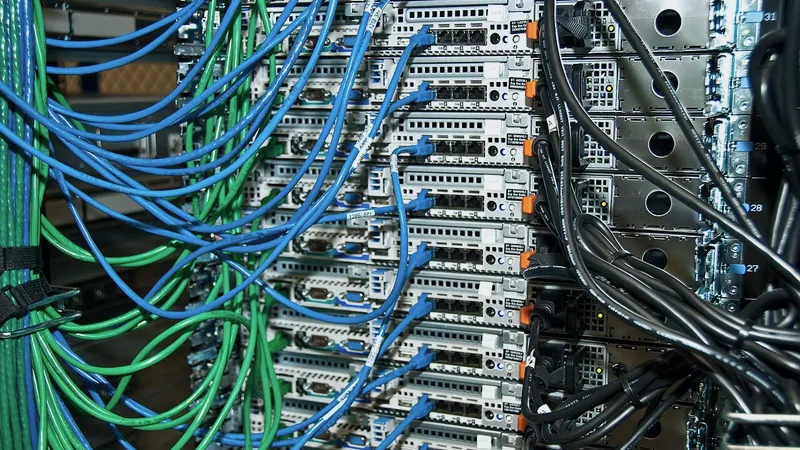
I run these drops at the same time as the desk and printer drops, on the same patch panel, and label them so anyone can see which panel port is which access point. The details of what lands in the rack are in server rack and patch panel installation.
What a proper Wi-Fi installation includes
Mounting a few access points and giving them a password is not an installation. A proper job for an office covers the following, and it is a fair checklist to hold any installer to:
- A coverage walkthrough with a signal meter, before the cable is run, to decide how many units and where. Guessing from a floor plan works for a simple open space; it does not work for a suite with brick walls or a mezzanine.
- Cabling to each location, tested and labeled.
- Mounting on the ceiling grid or a solid ceiling with the right bracket, not hanging by the cable.
- A PoE switch with enough power budget, in the rack, on the battery backup.
- Central configuration so all units share the same network names and settings.
- Separate networks for staff, guests, and devices like phones, cameras or printers, kept apart from each other.
- Channel and power settings so neighbouring access points do not interfere with each other or with the tenant next door.
- A second walkthrough after installation to confirm every desk, office and conference room has strong signal and a fast connection.
- Documentation: a marked-up floor plan showing each unit, the network names and passwords, and the admin login, handed to you.
If a quote covers only the first three items or only the last six, you are looking at half a job, and you will be hiring a second company to finish it.
Guest Wi-Fi, security and what a dental or law office should insist on
Any office with visitors needs a guest network, and it needs to be genuinely separate from the staff network, not just a second name on the same wireless. A guest on a properly built network can reach the internet and nothing else: not the printer, not the server, not the practice management system, not the other guests. That separation is a setting on business access points and a rule on the firewall, and it takes a few minutes to do correctly.
For staff, the basics are: WPA2 or WPA3 encryption, a strong password that is changed when someone leaves, and ideally a per-person login on larger teams so nobody shares a single password that ends up written on a whiteboard. Phones, cameras and printers get their own network as well, because those devices are updated less often than computers and should not be sitting on the same network as your files.
For dental and medical practices, this is part of how you meet HIPAA obligations: patient data should not travel over a network that the person in the waiting room can join. For law firms, the same logic protects client files. It is not complicated, but it has to be set up on purpose, and it is one of the first things I check when I take over an office where the Wi-Fi was "set up by the cable guy".
Common office Wi-Fi complaints and what usually fixes them
Most Wi-Fi problems in Dallas offices fall into a handful of patterns. The table is what I find most often, so you can recognize your own situation before calling anyone.
| Complaint | Usual cause | Usual fix |
|---|---|---|
| Full bars but slow | Too many devices on one access point, or the access point is on a slow or damaged cable | Add an access point in the busy area; test and fix the cable |
| Dead spot in the back offices | One access point in the closet at the other end of the suite | Move it to the ceiling in the middle, add a second unit |
| Drops when walking between rooms | Consumer mesh units, or two separate networks with different names | Business access points with one shared network and proper hand-off |
| Works in the morning, slow after lunch | Interference from neighbours, or guests on the staff network eating bandwidth | Set channels properly; separate the guest network and limit it |
| Conference room is unusable during meetings | Twenty laptops on a unit meant for six | Dedicated access point in the room, wired display and video bar |
| Printer keeps disappearing | Printer on Wi-Fi with a changing address | Put the printer on a cable with a fixed address |
| Whole network goes down at once | Consumer router overheating in a closed closet, or no battery backup | Business firewall in a rack with airflow and a UPS |
Notice how many of the fixes involve cable rather than Wi-Fi settings. If your office keeps losing its network, why your office network keeps going down covers the wired side of the same problem.
How the project runs with me
Here is what happens when you ask me to install Wi-Fi in a Dallas office, whether it is part of a full build-out or a fix for an existing suite:
- Walkthrough. I visit the space, note the construction and the layout, measure signal if there is an existing network, and mark access point locations on the plan. For a new build-out I do this from the architect's drawings and confirm on site.
- Written quote. Drops, access points, switch and configuration are separate lines, so you can see the cost of each and compare it fairly with anyone else.
- Cabling. I run and test the drops with the rest of the office cabling, ideally before the ceiling closes.
- Install and configure. Units mounted, networks built, channels set, guest network isolated, everything on the battery backup.
- Coverage check. I walk every room with a laptop and a phone and fix anything weak before handover.
- Handover. You get the floor plan with unit locations, the network names, the passwords and the admin login.
After that, the access points are something I can watch and adjust remotely if you keep me on for ongoing support, so a new dead spot after a furniture change is usually a settings fix from my desk rather than a site visit. To get started, send me the address and a floor plan and tell me what the Wi-Fi does today that it should not.
Questions people ask
Who installs office Wi-Fi access points and the cabling for them in Dallas?
I do both. I walk the office to choose access point locations, run a Cat6 drop to each one as part of the office cabling, mount and configure the units with separate staff and guest networks, and check coverage room by room before handover. Having one company do the cable and the Wi-Fi removes the gap where cabling and IT vendors blame each other.
How many Wi-Fi access points does a 5,000 square foot office need?
Usually two to four. Open plan space needs roughly one access point per 1,500 to 2,500 square feet, while a suite full of private offices needs more because every wall costs signal. Conference rooms with many laptops often need their own unit regardless of size. A walkthrough with a signal meter is how I settle the number rather than guessing.
Does each access point need its own cable?
Yes. One Cat6 cable to each access point carries both the data and the power, supplied by a Power over Ethernet switch in the rack, so there is no outlet needed on the ceiling. Wireless mesh units that relay to each other waste airtime and are only as good as the link back to the first unit, which is why business installs cable every access point.
Can you add access points to an office that is already cabled?
Yes. If the existing cabling is decent, I add ceiling drops for the new access points back to the same patch panel, swap or add a PoE switch if needed, and configure the new units alongside anything worth keeping. In a finished office the ceiling drops take longer than they would during construction, but it is a routine job of a day or less for most suites.
Where should access points be mounted?
On the ceiling, in open view, near the middle of the area each one serves. If you can see the access point from most of a room, that room will have good signal. Avoid the IT closet, above the ceiling tiles, on top of cabinets and behind TVs. In corridors lined with private offices, a unit in the corridor ceiling every 40 to 60 feet works well.
Should guest Wi-Fi be separate from staff Wi-Fi?
Always. A guest network should reach the internet and nothing else: not printers, servers, patient or client files, or other guests. That is a setting on business access points plus a rule on the firewall, and it is a basic part of meeting HIPAA duties for dental and medical practices and protecting client confidentiality in a law office.