
Who can move our files from an old server to SharePoint or OneDrive in Dallas?
Cross River Tech can. I am Anthony Omini, and I move Dallas offices from an old file server to SharePoint and OneDrive: I inventory the shared drive, map each folder to a library with the right permissions, fix the file names and long paths Microsoft will reject, copy everything in the background, then switch people over after hours. It is quoted as a fixed project after a short conversation.
Answered by Anthony Omini, Cross River Tech, Dallas
Key takeaways
- Shared company folders go to SharePoint libraries, each person's own files go to OneDrive, and live databases stay out of both.
- Microsoft rejects any file whose full path is over 400 characters and names containing certain characters, so the shared drive has to be scanned and cleaned first.
- Microsoft's Migration Manager copies a file share to SharePoint, OneDrive or Teams in the background while people keep working, then a final pass picks up the last changes.
- Permissions should be redesigned around groups before the move, not copied folder by folder from the old server.
- I quote a server-to-SharePoint move as a fixed project; small one-off jobs run at $100 per hour remote or $150 per hour onsite in business hours.
Who can move our files from an old server to SharePoint or OneDrive in Dallas?
Cross River Tech can. I move small and mid-sized Dallas offices off an aging file server and onto SharePoint and OneDrive in Microsoft 365. The work is mostly planning: deciding which folders become shared libraries, who gets access to each, and which files Microsoft will refuse until they are renamed. The copying itself runs in the background, and people switch over after hours.
I am Anthony Omini, the owner. You deal with me directly from the first conversation to the day the old server is switched off, and my team handles the routine monitoring behind me. I work onsite across Dallas–Fort Worth by appointment, and a file migration is largely remote work, so I also do it for offices anywhere in Texas.
This is part of my Microsoft 365 and Google Workspace service. Most offices come to it for one of four reasons:
- The server is old, and replacing it costs more than the office wants to spend on a box in a closet.
- People work from home or from two locations, and the VPN (the secure tunnel back to the office network) is slow and unreliable.
- The office is moving, and nobody wants to pay to relocate a server that is near the end of its life.
- The company already pays for Microsoft 365 for email, and the file storage that comes with it is sitting unused.
If one of those is you, the sections below show what the move involves, what can go wrong and how I price it.
SharePoint, OneDrive or Teams: what goes where?
The three names confuse almost everyone, and a migration that puts files in the wrong one creates a mess that is hard to undo. The short version: OneDrive is for each person's own files, SharePoint is for files a group shares, and Teams is a window onto a SharePoint library with chat attached.
Where each kind of server data belongs
| On the old server | Where it goes | Why |
|---|---|---|
| Each person's home folder or "My Documents" | That person's OneDrive | Private by default, follows the person to any computer |
| Department folders (Accounting, HR, Operations) | A SharePoint library per department | Access is given to a group, not person by person |
| Client, matter or project folders | A SharePoint library, or a Teams channel if the group also chats about the work | Everyone on the work sees the same current version |
| Company-wide templates, forms and policies | One read-only SharePoint library | One place to look, only a few people can change it |
| Old, closed files kept for the record | An archive library with tighter access | Keeps history without cluttering daily work |
| Live databases (accounting company files, practice or agency software data) | Not SharePoint or OneDrive | These need a server or the vendor's hosted version; ask the software vendor |
How to read this table: go down the first column with your own shared drive open and sort every top-level folder into a row. Anything you cannot place is a question to settle before the move, not after. The last row matters most: a database that several people open at once is not a document, and syncing it like one can damage it.
Storage is rarely the obstacle for a small office. Microsoft's SharePoint limits page gives each organization 1 TB of shared SharePoint storage plus 10 GB for every license purchased, and each person's OneDrive is on top of that. An office with 20 user licenses would start with 1.2 TB of shared space. I check your actual total before recommending anything.
What should not move to SharePoint or OneDrive?
A file server collects many kinds of things over the years. Some of them do not belong in a document library, and finding them before the migration saves a bad first week.
- Databases that several people use at once. Accounting company files, and the data folders behind practice management, agency management or other line-of-business software. They need the application's own server or the vendor's hosted edition. The vendor's support team will tell you which options they support.
- Outlook archive files (.pst). Microsoft says these are supported but synced less often than other file types. Old mail archives are better imported into the mailbox they belong to, where they can be searched and are covered by the same retention as the rest of the mail.
- Very large design and video files. SharePoint accepts single files up to 250 GB, so size alone is not a barrier. Working speed is. Large drawing sets and video projects that are opened and saved all day can be slow over a sync connection. For those I look at the options in file servers and shared storage for design firms.
- Program installers, scanner drop folders and backup files. A scanner that saves to a server folder needs a new destination. Old installers and backup sets usually need a decision about whether to keep them at all.
- Duplicates and abandoned folders. "Copy of Final v3" and the folders of people who left long ago. A migration is the cheapest moment to archive or delete them, with the owner's sign-off.
None of this stops the project. It changes the plan: some things move to SharePoint, some move somewhere else, and some are retired. An office that depends on one database application may keep a small server or move that application to its hosted version while everything else goes to Microsoft 365.
The Microsoft limits that stop a migration
SharePoint and OneDrive have rules a Windows file server never enforced. Files that break them are skipped during the copy, and unless someone reads the report, nobody notices until a person goes looking for a file that is not there. These are the limits that matter for a small office, taken from Microsoft's own documentation.
What Microsoft rejects or warns about, and the fix
| Rule | Microsoft's limit | What I do about it |
|---|---|---|
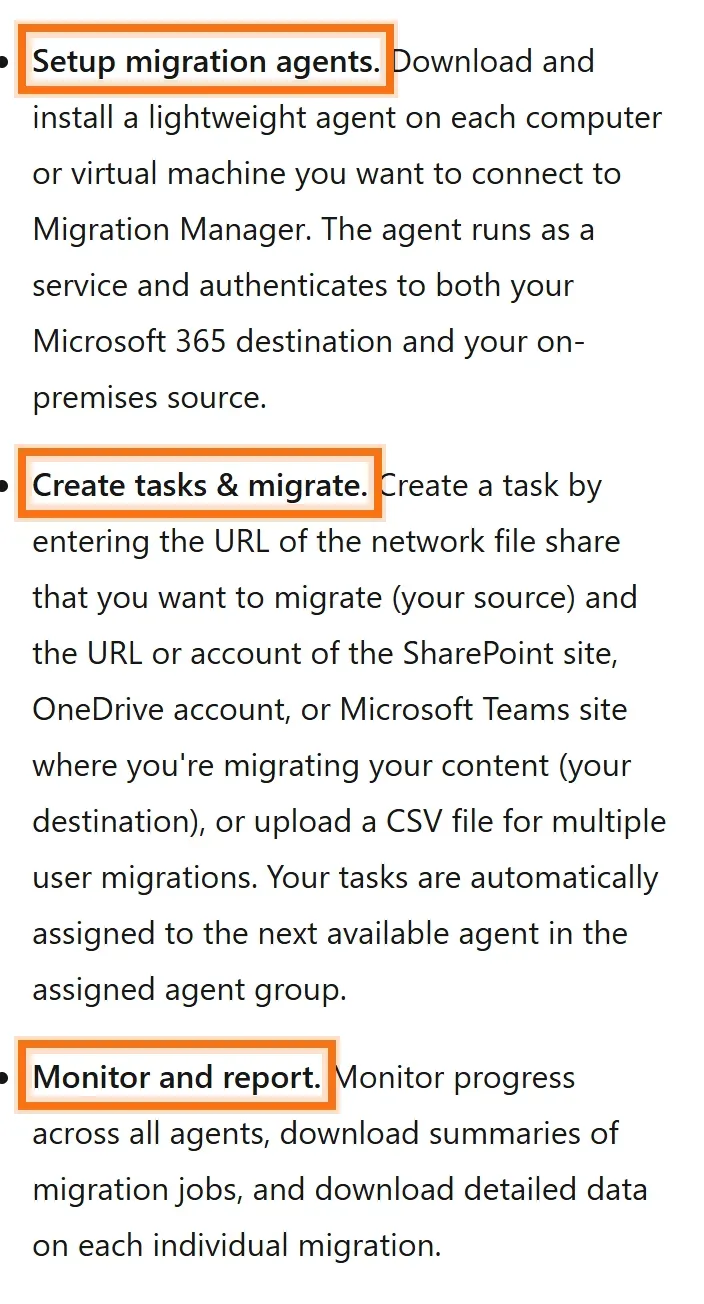
| Full path length (folders plus file name) | 400 characters | Shorten deep folder trees and long names before the copy |
| Characters in names | Not allowed: " * : < > ? / \ | | Rename, with a list given to the folder's owner |
| Reserved names | Names such as CON, PRN, AUX and NUL, and names starting with ~$ | Rename or remove leftover temporary files |
| Single file size | 250 GB | Rarely an issue; flagged if found |
| Files synced to one computer | Microsoft recommends no more than 300,000 items across synced libraries | Split large shares into several libraries and sync only what each person uses |
| Uniquely permissioned items in a library | 50,000 supported, 5,000 recommended | Give access to groups at the library or top folder level |
How to read this table: the first two rows cause nearly all skipped files, and both can be found by scanning the server before anything is copied. The 300,000-item row is about daily speed after the move: one giant library synced to every laptop is slow, while several smaller ones are not.
The path limit deserves a closer look, because it is the one that surprises people. The 400 characters include every folder name from the top of the library down to the file. A file that sat ten folders deep on the server, inside folders with long descriptive names, can exceed it even though each name looked reasonable. The fix is a flatter structure, and that usually makes files easier to find as well.
How the move works: seven steps
Every server is different, but the order of work is the same. This is the sequence I follow.
- Inventory. List every shared folder: its size, how many files, who uses it, when it was last touched, and what kind of data it holds. This is where databases, mail archives and scanner folders are found.
- Design the destination. Decide the libraries and who can see each one. I write it down as a simple map, old folder to new location, and you approve it before anything moves.
- Scan and clean. Check the shares for long paths, blocked characters and reserved names. The owners of each folder get a short list of what will be renamed.
- Prepare Microsoft 365. Create the sites, libraries and security groups, confirm the licenses and storage, and make sure multi-factor authentication is on for every account before company files are reachable from anywhere. My guide to Microsoft 365 security for a small business lists the settings.
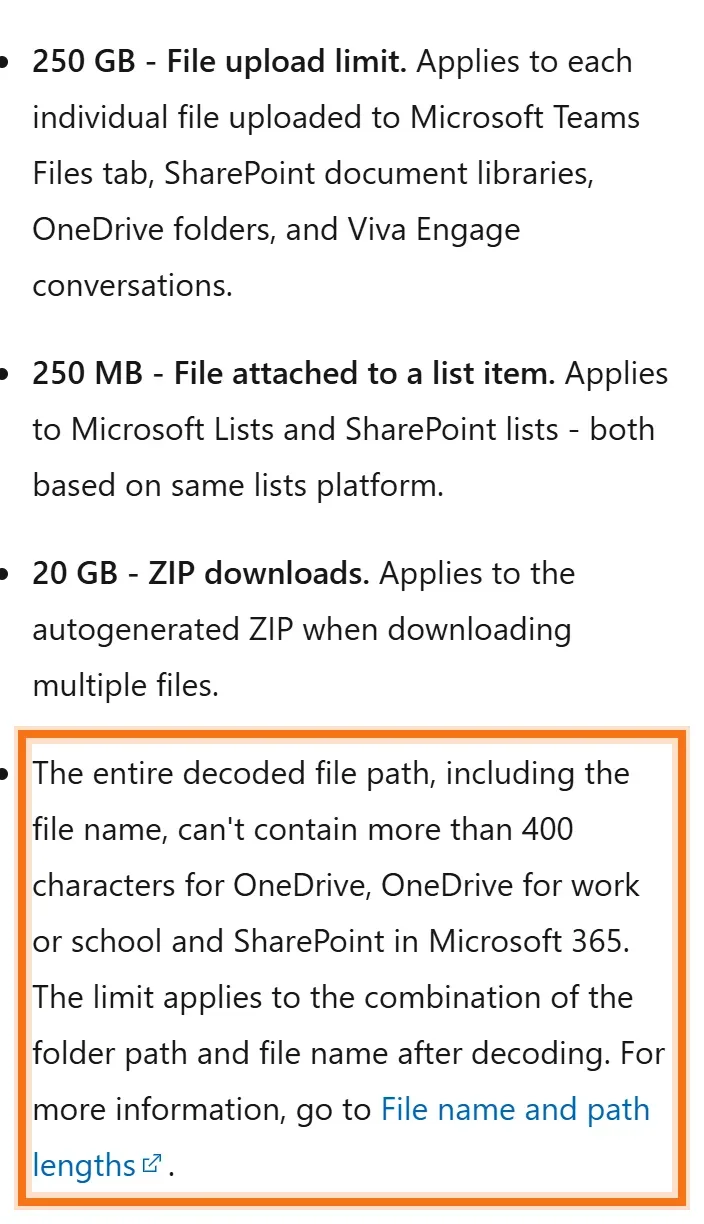
- Copy in the background. Microsoft's Migration Manager, part of the SharePoint admin center, does the copying. A small agent is installed on a computer that can read the server, and a task is created for each share with its destination. People keep working on the server while this runs.
- Cut over after hours. The server shares are set to read-only, a final pass copies whatever changed since the first copy, and each computer is pointed to the new libraries. OneDrive is set up so the files people use appear in File Explorer where they expect them.
- First-day support, then retire the server. I am available the first morning for the "where is my folder" questions. The server stays untouched and read-only for an agreed period as a safety net, then it is backed up one last time and decommissioned.
Microsoft lists the requirements for that agent computer: Windows 10 or Windows Server 2016 or later, at least 8 GB of memory with 16 GB recommended, and 150 GB of free solid-state disk space. It also needs an account with read access to the shares, and the person running the migration needs to be a SharePoint or global administrator in your Microsoft 365. If you do not know who holds your admin account, sort that out first.
When the last step is reached, the server's disks still hold your data. My article on office IT decommissioning covers wiping and disposal.
Permissions: redesign them, do not copy them
On an old server, access usually grew one request at a time. Someone needed a folder, they were added to it by name, and ten years later nobody can say who can open what. Copying that tangle into SharePoint keeps every old mistake and adds new ones, because sharing links make it even easier to hand out access.
A migration is the moment to do it properly:
- Access goes to groups, not to people. An Accounting group can open the Accounting library. When someone joins or leaves the department, they are added to or removed from the group, and nothing else changes.
- Permissions are set at the library or top folder. Folders deep inside with their own special access are what become impossible to audit, and Microsoft's own guidance recommends keeping uniquely permissioned items low.
- Sensitive material gets its own library. Payroll, HR files and partner or owner documents should live where a mistake in a shared folder cannot expose them.
- External sharing is a decision. Whether staff can send a link to someone outside the company, and whether that link expires, is a setting. I set it with you, library by library where needed.
For a law firm, this is where confidentiality between matters is built in. For a dental or medical practice, it is where access to anything containing patient information is limited to the people who need it. In both cases the design should be written down, so that the next audit or insurance questionnaire can be answered from a document, not from memory.
What changes for your people on Monday morning?
Less than they fear, if the setup is done well. The files appear in File Explorer under the company name, in folders with familiar names. Opening, saving and dragging work the same way. A small cloud icon shows which files are stored online only and which are kept on the computer.
Three things are new, and worth five minutes of explanation each:
- The S: drive letter is gone. Shortcuts and links inside old spreadsheets that pointed to a drive letter need to be updated. I look for linked workbooks during the scan so the owners know in advance.
- Two people can edit the same Office document at once. No more "file is locked by another user". Version history keeps earlier copies, so an overwritten paragraph can be brought back.
- Files work away from the office. No VPN is needed for documents. That convenience is exactly why multi-factor authentication has to be on before the move.
One thing does not change: you still need a backup. SharePoint's recycle bin and version history help with everyday mistakes, but they are not a separate copy. I explain the difference in what a business can recover after someone deletes files, and backup is part of my managed plan.
What does it cost, and how do I start?
A server-to-SharePoint move is project work, so I quote it as a fixed price after a short conversation and a look at the server. The things that move the price are the amount of data, how many shared folders and permission groups there are, how much cleanup the scan turns up, and how many computers need to be reconnected.
How each part of the job is priced
| Part | How it is priced |
|---|---|
| Server to SharePoint and OneDrive migration | Fixed project quote after a short conversation about your data |
| Microsoft 365 licenses and any extra storage | Passed through at Microsoft's published price |
| Small one-off jobs, remote (one department, a cleanup, a second opinion on a plan) | $100 per hour in business hours; $150 per hour after hours, weekends and holidays |
| Small one-off jobs, onsite | $150 per hour in business hours; $225 per hour after hours, weekends and holidays |
| Administration after the move | Included in managed IT, billed per user or per device per month, month-to-month |
How to read this table: the first row is the project; the hourly rows are for offices that only need a piece of it. Hourly work has a one-hour minimum and is billed by the hour, and business hours are Monday to Friday, 8 AM to 5 PM Central. A project quote states when the cutover will happen and what it includes before you decide, so nothing is added afterward.
After the move, someone has to add and remove people from groups, watch storage and answer the occasional "I cannot find my file" call. Clients on managed IT services have that included. If you would rather handle it in-house, I hand over the map of libraries and groups and you call me only when you need to.
To start, call or text (214) 612-7080 or send me a short note with three things: roughly how much data is on the server, how many people use it, and which programs store their data there. I will tell you what can move, what should not, and what the project would cost.
Questions people ask
Who moves files from an old server to SharePoint or OneDrive in Dallas?
Cross River Tech does. I am Anthony Omini, the owner, and I plan and carry out server-to-SharePoint and OneDrive migrations for offices across Dallas–Fort Worth, and remotely anywhere in Texas. I inventory the shared drive, design the libraries and permissions, clean up file names Microsoft would reject, copy the data in the background and switch people over after hours.
Will people be able to work while the files are being copied?
Yes. The first copy runs in the background while everyone keeps using the server as usual. At the cutover, done after hours, the server shares are set to read-only and a final pass copies whatever changed since the first copy. The next working day people open their files from the new SharePoint libraries and OneDrive.
What is the difference between SharePoint and OneDrive?
OneDrive is personal storage: each user's own documents, private unless they share them. SharePoint is shared storage for a group, organized into libraries that a department or project team can open. Teams shows a SharePoint library inside a chat workspace. In a server migration, home folders go to OneDrive and shared department or client folders go to SharePoint.
Can QuickBooks or our practice software data live in SharePoint?
Usually not. A database that several people open at the same time is not a document, and syncing it through OneDrive or SharePoint can damage it. Those applications need their own server or the vendor's hosted version. I identify them during the inventory, and the software vendor confirms which hosting options they support before anything is moved.
What is the SharePoint file path limit?
Microsoft's limit is 400 characters for the entire path, counting every folder name and the file name together, in both OneDrive and SharePoint. Files over the limit are skipped during a migration. Deep folder trees with long names are the usual cause, so I scan the server for long paths first and shorten the structure before copying.
Do we still need a backup after moving to SharePoint?
Yes. The recycle bin and version history recover everyday mistakes for a limited time, but they sit inside the same service as the files. A separate backup protects against a deleted library, a compromised account or ransomware that syncs from a laptop. Managed backup is part of my managed IT plan, or I can set one up as a one-off project.
Can we get rid of the server completely afterward?
Often, but not always. If the server only holds files, it can be retired once the migration is checked and an agreed safety period has passed. If it also runs a database application, sign-ins for the office computers or a line-of-business program, those need their own plan first. I list everything the server does before promising it can go.
Sources and further reading
Market price ranges in this article are my own observation of quotes in the Dallas market, not a published survey. Where I state a rule or a standard, the source is linked above.